Kitty User Guide
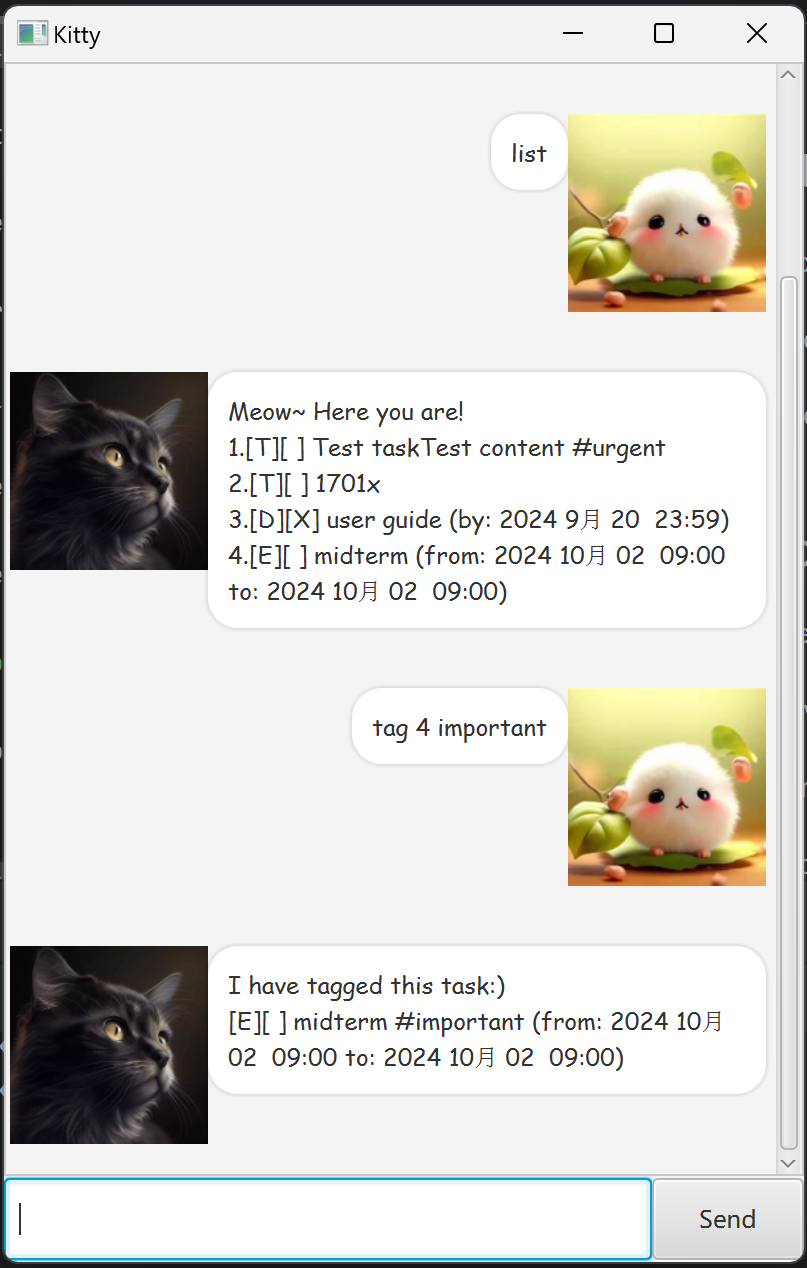
Kitty is a desktop app for task management. Whether it is a simple TODO, a DEADLINE or an EVENT, Kitty is here to ensure that you don’t lose sight of what is important.
Quick Start
- Ensure you have a Java
17or above installed in your computer. - Download the latest
.jarfile in the repository. - Copy the file to the folder you want to use as the home folder for your Kitty chatbot.
- Open a command terminal,
cdinto the folder you put the jar file in, and use thejava -jar Kitty.jarcommand to run the application. -
Type the command in the command box and press Enter to execute it. The command lists are as below.
Features
Content wrapped in [] in commands is optional.
Adding tasks to the list
Adding TODOs: todo
Use this command to help you add a TODO item to the task list. Once added, it can be seen when you list out the tasks.
Command: todo <name_of_TODO_item> [#<tag_name>]
Example: todo submit 2106 lab
Expected output:
Okie, I added it into the list:
  [T][ ] submit 2106 lab
Now you have 1 tasks in the list.
Adding DEADLINEs: deadline
Use this command to help you add a DEADLINE to the task list. Once added, it can be seen when you list out the tasks.
Command: deadline <name_of_DEADLINE> /by yyyy/mm/dd HH:MM [#<tag_name>]
Example: deadline 2103 iP user guide /by 2024/09/20 23:59
Expected output:
Okie, I added it into the list:
  [D][ ] 2103 iP user guide (by: 2024 Sep 20  23:59)
Now you have 2 tasks in the list.
Adding EVENTs: event
Use this command to help you add an EVENT to the task list. Once added, it can be seen when you list out the tasks.
Command: event <name_of_EVENT> /from yyyy/mm/dd HH:MM /to yyyy/mm/dd HH:MM [#<tag_name>]
Example: event recess week /from 2024/09/21 07:00 /to 2024/09/29 23:00
Expected output:
Okie, I added it into the list:
  [E][ ] recess week (from: 2024 Sep 21  07:00 to: 2024 Sep 29  23:00)
Now you have 3 tasks in the list.
Listing all tasks
Use this command to view the current task list.
Command: list
Example: list
Expected output:
Meow~ Here you are!
1.[T][ ] submit 2106 lab
2.[D][ ] 2103 iP user guide (by: 2024 Sep 20  23:59)
3.[E][ ] recess week (from: 2024 Sep 21  07:00 to: 2024 Sep 29  23:00)
Marking a task
Use this command to mark a task as done.
Command: mark <number_of_the_item_in_the_list>
Example: mark 1
Expected output:
Well done! You have completed this task!
 [T][X] submit 2106 lab
Unmarking a task
Use this command to unmark the task back to the status of not done yet.
Command: unmark <number_of_the_item_in_the_list>
Example: unmark 1
Expected output:
Meow~ Okay we can continue this task!
  [T][ ] submit 2106 lab
Deleting a task
Use this command to delete a task from the task list.
Command: delete <number_of_the_item_in_the_list>
Example: delete 2
Expected output:
I have removed it from the list :)
  [D][ ] 2103 iP user guide (by: 2024 Sep 20  23:59)
Now you have 2 tasks in the list.
Finding a task using keyword
Use this command to search for a task with the keyword.
Command: find <keyword>
Example: find recess
Expected output:
Meow~ Here you are!
[E][ ] recess week (from: 2024 Sep 21  07:00 to: 2024 Sep 29  23:00)
Tagging a task
Use this command to add or update tag to a task.
Command: tag <number_of_the_item_in_the_list> <tag_name>
Example: tag 1 important
Expected output:
I have tagged this task:)
[T][ ] submit 2106 lab #important
Saying goodbye
Say goodbye to the chatbot if you like before you close it.
Command: bye
Example: bye
Expected output:
Bye. Hope I can see you again soon!
Next time bring me some cat food please!!!